Pick Up To Ship Order Conversion
Pickup to Ship provides a flexible, operationally sound way to convert paid pickup orders into shipped orders, without compromising accounting integrity, inventory accuracy, or compliance workflows.
It was built to support tasting room and fulfillment scenarios while keeping your data clean and auditable.
With the proper permissions in place, authorized users can:
- Convert eligible pickup orders directly from Order Search Results
- Select or create shipping addresses
- Apply available shipping rates
- Set hold ship dates
- Collect payment for shipping costs
User Permission Required
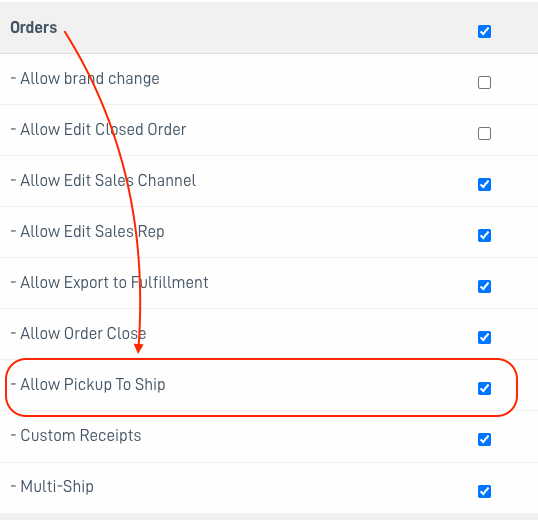
Permission Required: To perform Pick Up to Ship order conversion, your user account must be enabled with two permissions:
- Primary access to Orders.
- The sub-permission for Allow Pickup To Ship.
Contact your eCELLAR User Manager for assistance.
Order Conversion: Pick Up to Ship
IMPORTANT - Read this before proceeding.
- Tax rates will NOT be updated from the rate originally assigned to the order.
- When performing an order conversion, you assume the tax liability.
- Example: Original order was To Pick Up in Calistoga, CA with a tax rate of 7.75%, then converted to Ship to Denver, CO where the tax rate is 9.15%. the original rate of 7.75% will remain creating a variance of 1.4%.
- ONLY PROCESS (Auth/Capture) SHIPPING CHARGES IN THE ACP - DO NOT OPEN A CONVERTED ORDER WITH SHIPPING FEES DUE (Partial Paid) IN THE POS TO PROCESS PAYMENT. This will result in a change in the total dollar amount.
- Contact Support with any questions.
No take backs!
Once an order is converted from Pickup to Ship, it cannot be reverted back to To Pick Up.
An order eligible for conversion from To Pick Up to Unshipped or Hold Ship will have a truck icon for Convert to Ship.
This button only displays when the order is Paid and Shipping Status is set to To Pick Up.
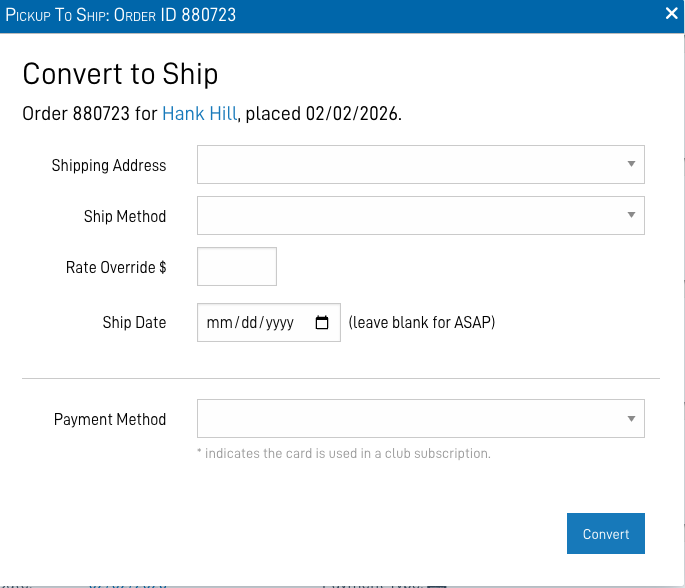
Click on the truck icon to begin the process and open an overlayed action screen.

Shipping Information
-
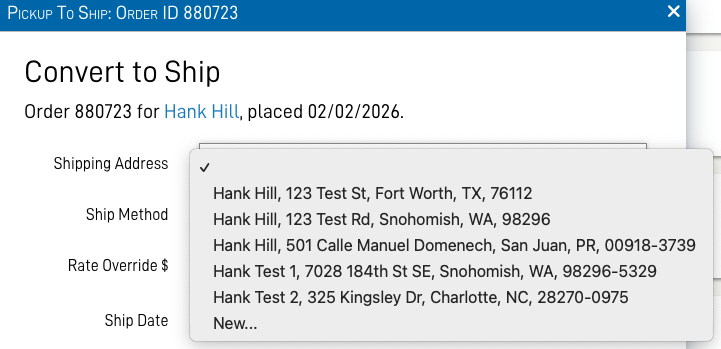
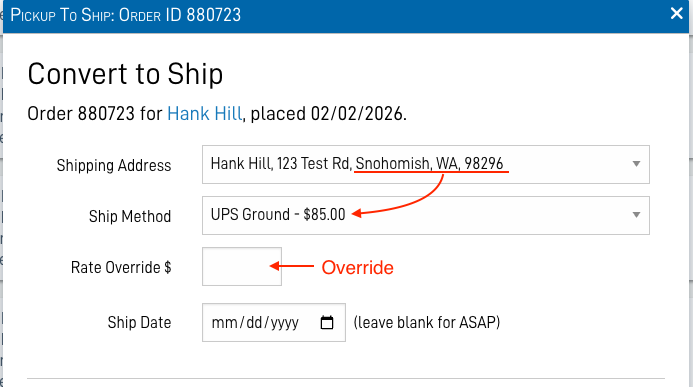
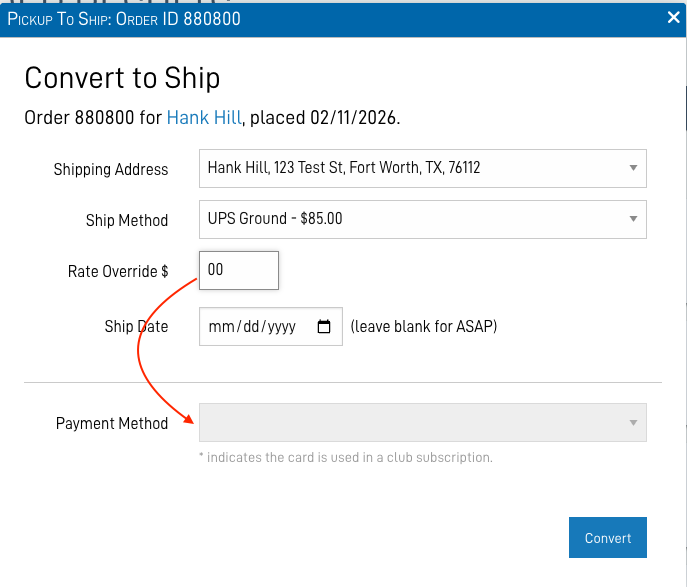
Select an existing address from the drop down menu, or add a new address.
-
When an address is selected the shipping rates from Shipping Zones and Methods settings will automatically populate with the available methods and corresponding rates.
The default rate for the zone will be displayed first, and consequently, it will also be automatically selected.
- The method can be changed to another in the same zone settings.
- The shipping rate can be overridden.
- A future ship date can be added, rendering the shipping status for the order as Hold Ship.
-
If there are no shipping addresses available, the there will be a link to create one, and no drop-down menu. (An address will be required from the customer.)
-
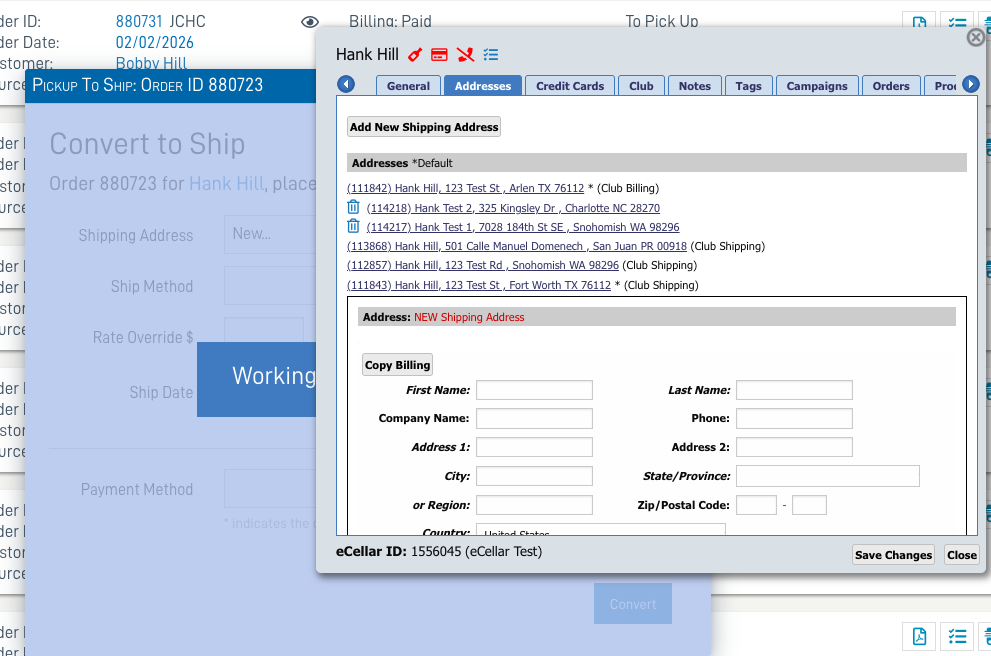
- If New... is selected to enter a new shipping address, the Customer Card will open to the Address tab and the information can be added.
-
Once entered and saved, the conversion dialogue box will open as above, with the new address selected.
-
Payment Information
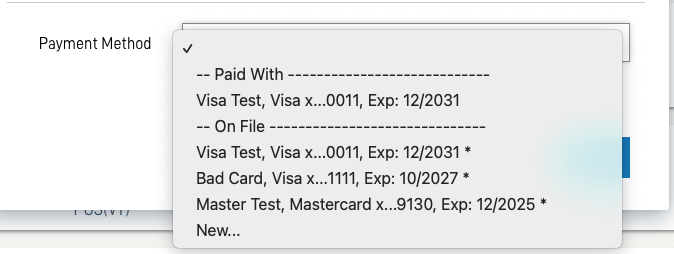
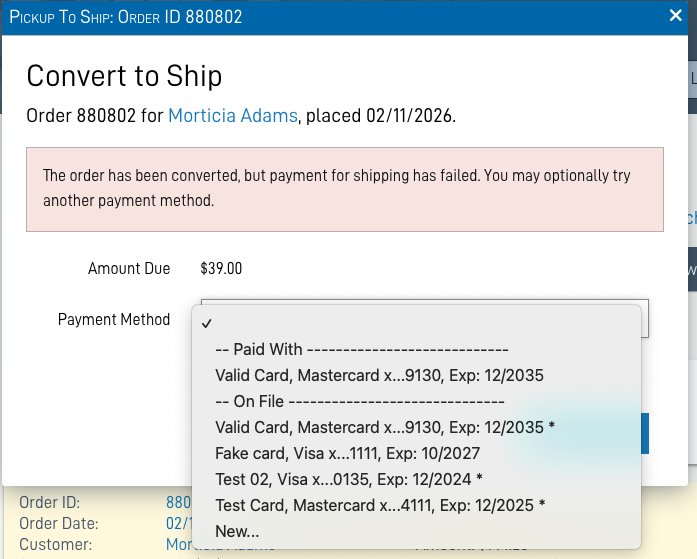
- Select an existing card from the drop down menu, or add a new card.
- The original card used for the order is called out as "Paid With".
- Cards on file that are assigned to a club subscription will be marked with an asterisk.
- Select the desired credit card and click the Convert button.
-
If there are no payment methods available (I.E.: The original pickup order was paid in cash), there will be a link to create one, rather than a drop-down menu. (A payment method will be required from the customer.)
-
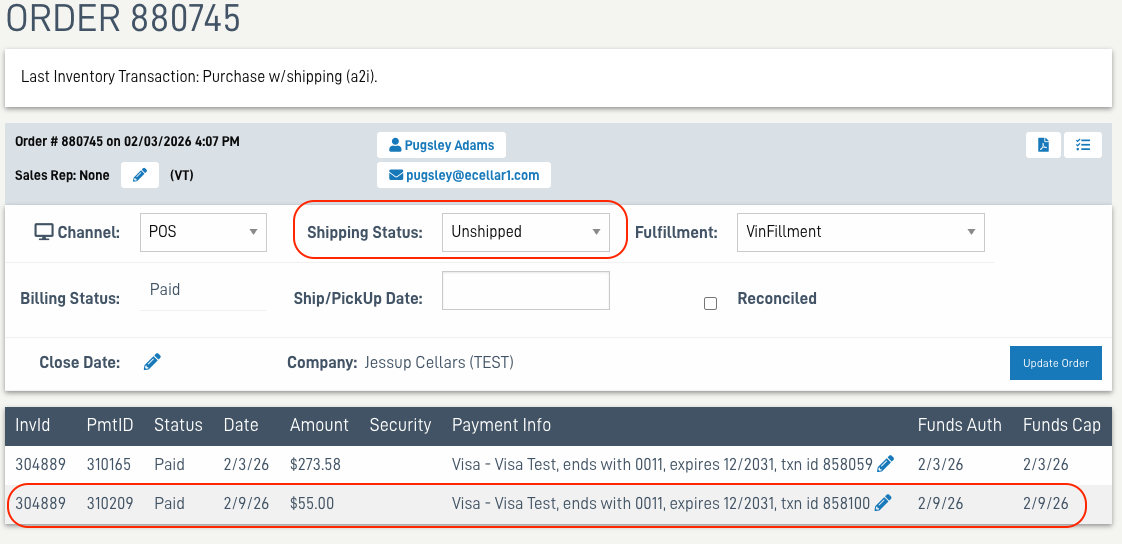
Valid Payment results with a confirmation pop-up message. The order line in the search results will turn green.
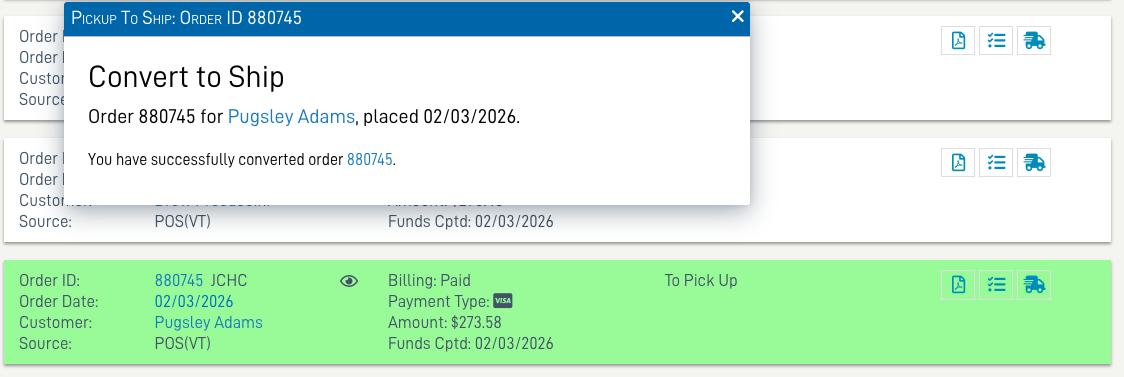
- In the Order Detail the Shipping status will be Unshipped.
-
A second payment transaction line will be present as Paid for the shipping fees.
-
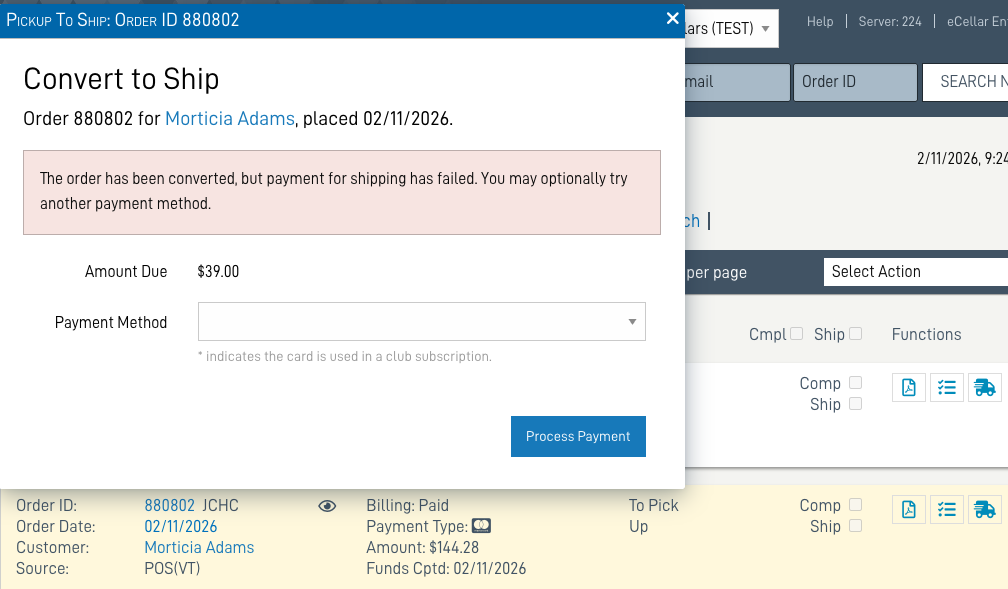
Invalid/Declined Payment results in a message: The order has been converted to SHIP, but payment for shipping has failed.
The order line in the search results will turn yellow.
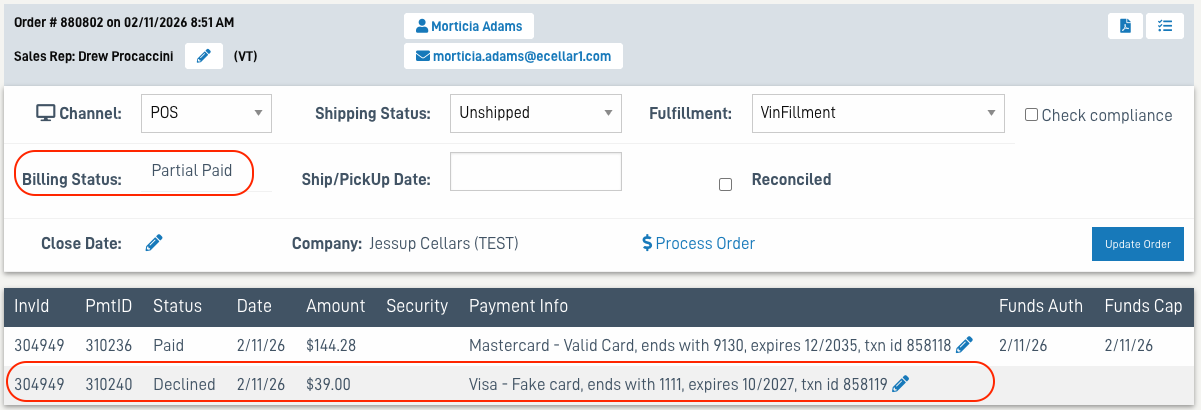
- In the Order Detail the Billing status will update to Partial Paid.
-
A second payment transaction line will be present with the status Declined for the shipping fees.
-
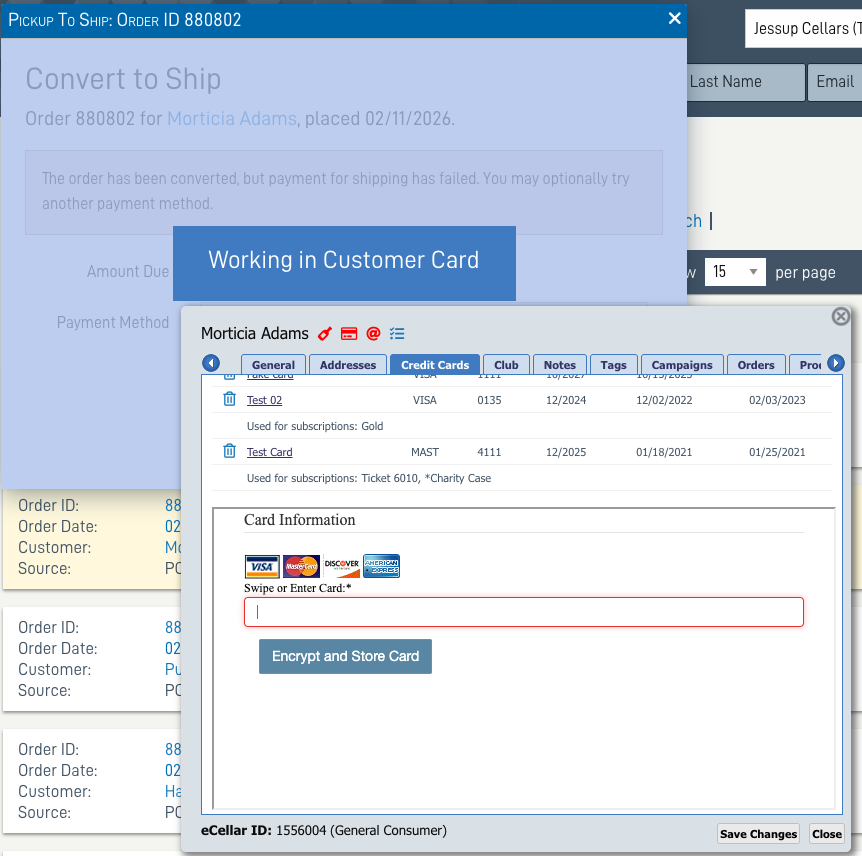
A different card on file can be selected, or a new card entered.
- If a zero amount is entered in the Rate Override $ field, the payment method dropdown is disabled (grayed out) and is ignored.
-
Click Convert to continue
-
- If New... is selected to enter a new credit card, the Customer Card will open to the Credit Card tab and the information can be added.
-
Once entered, the conversion dialogue box will open as above, with the new credit card selected. Click Process Payment to complete.
-
Pick Up to Ship Order Search
To search for existing orders eligible for conversion from Pick Up to Ship:
-
Billing status = Paid, Shipping status = To Pick up, optional date frame, or order source, or other segmentation.
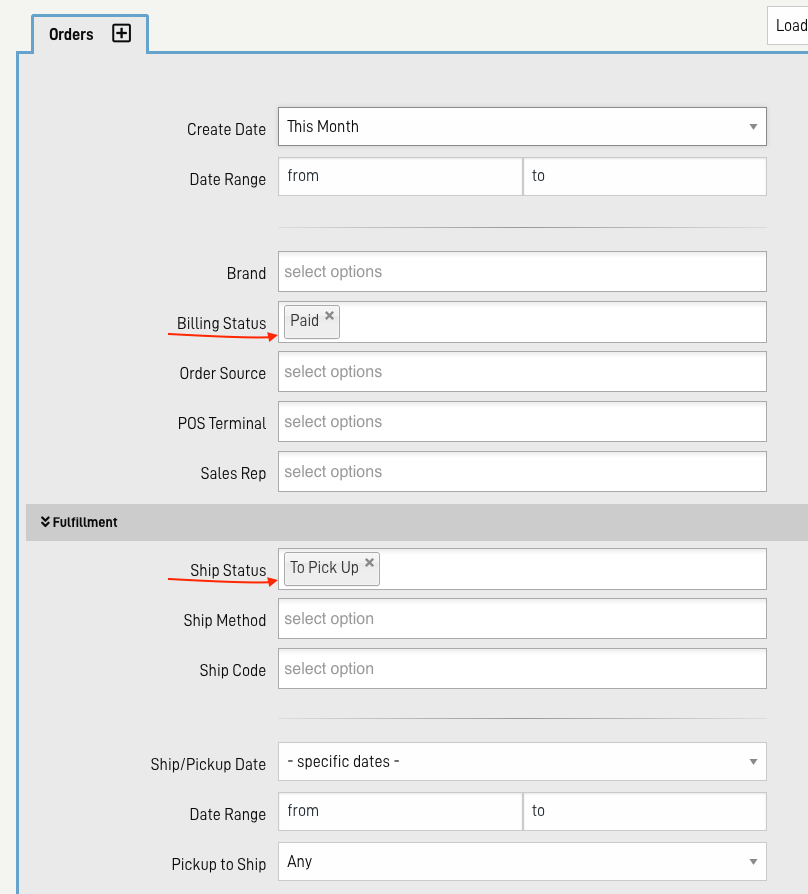
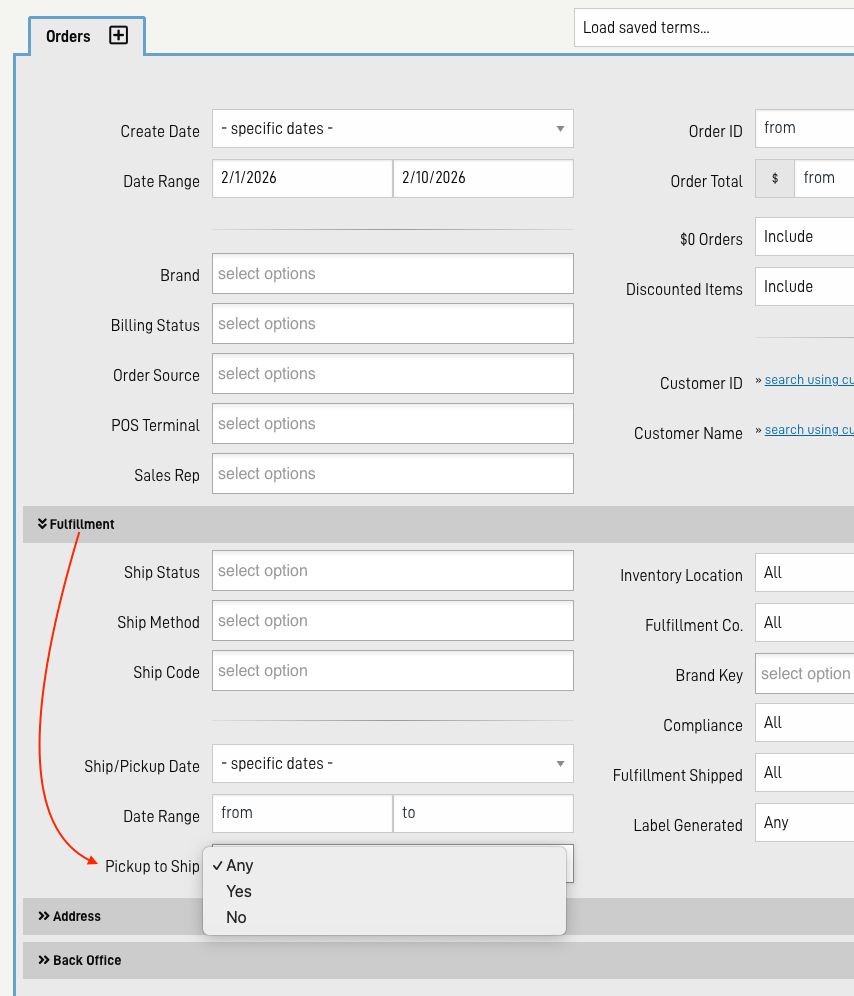
Orders that have been converted from To Pick Up to Ship can be searched and segmented in the Admin Panel (ACP).
- In the Order Search form, under the Fulfillment tab find the Pickup to Ship field.
-
Select Yes, optionally coupled with other segmentation such as a date frame or billing status, to find orders that have been converted.
NOTE: DO NOT OPEN CONVERTED PARTIAL PAID ORDERS IN THE POS - This will result in a change in the total order dollar amount.
-
-
In the search results, converted orders with declined credit card payments for shipping fees will have a red framed truck icon.

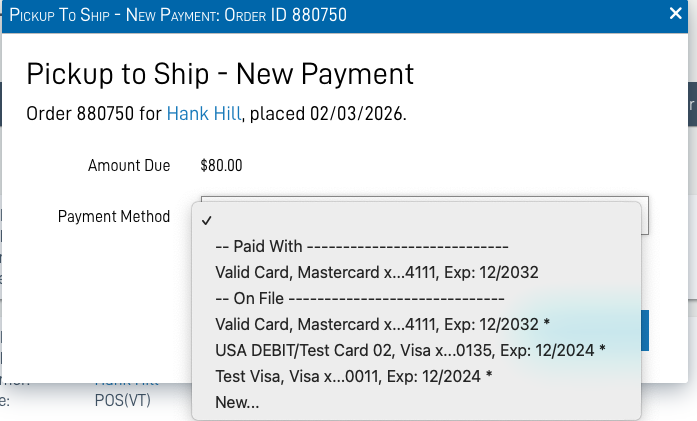
- Upon clicking the icon a Pickup to Ship - New Payment dialogue box will appear.
-
The same as the declined payment workflow above, a different existing card can be used or new card added.
-
Inventory Transactions
For clients utilizing the eCELLAR inventory module, the Pick Up to Ship conversion will automatically execute the necessary inventory transactions to guarantee that inventory is depleted from the intended fulfillment location and accurate counts are maintained.
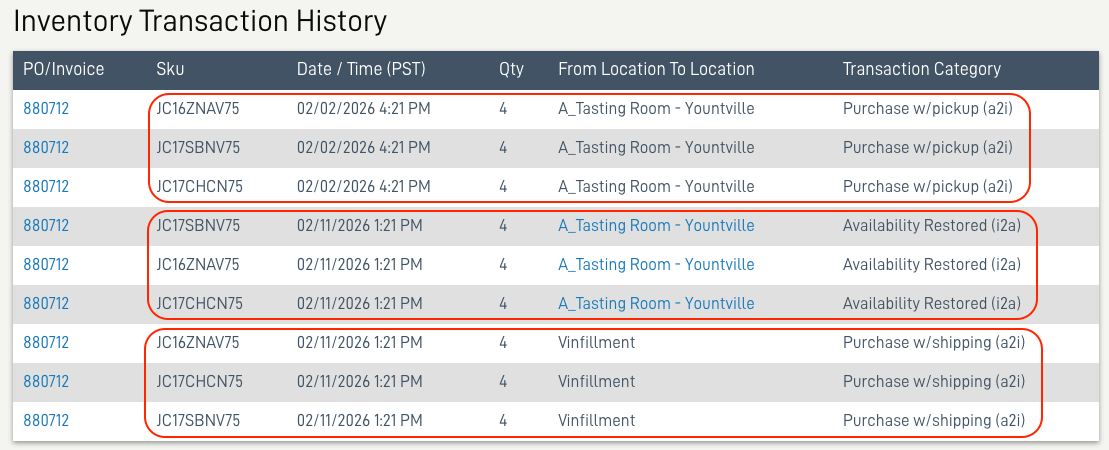
The inventory transactions are updated in the Order Detail to reflect these changes:
- The initial inventory transaction will be Purchase w/pickup (a2i), from the location designated in your Location Settings in the Company Settings. Presumably your tasting room.
- Upon conversion to ship, the transaction will be Availability Restored (i2a) back into the original inventory location.
- AND at the same time, Purchase w/shipping (a2i), from the location in your Shipping Zones and Methods settings. Presumably a fulfillment location.
-
When the order is shipped the transaction will update as expected, Product Shipped (i2p).
Other Order Detail Updates
In order to present a comprehensive overview of the system updates, there are additional Order Detail data fields that undergo updates when an order is converted from Pickup to Ship, in addition to the ones mentioned previously.
-
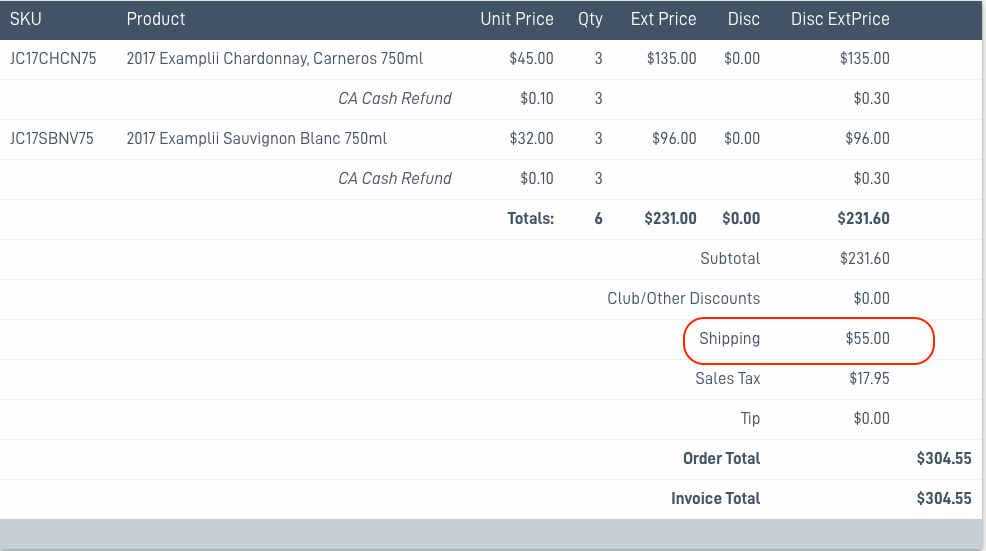
Shipping amount: The shipping rate is added to the invoice Shipping line, and added to the total.
-
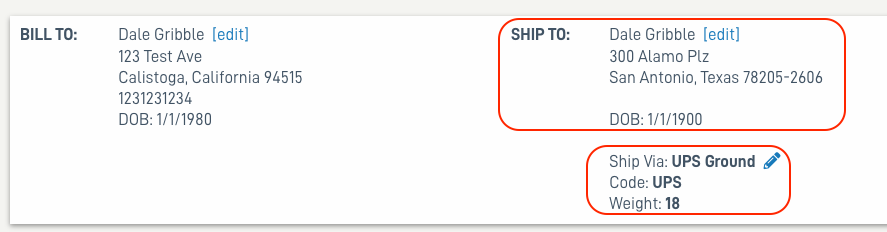
The shipping address is updated, and shipping information added.