
Connecting Card Readers for Use - Stationary POS Station
This article will cover the S700 set up for a stationary/regular POS station and Virtual terminals.
Keep in mind that ALL credit card entries, including manual card, "MOTO" (Mail Order/Telephone Order), entry require a card reader.
If you have an S710 device the set up is the same. Please note that while Stripe maintains the S710 will work for all instances, we have not tested this and cannot guaranty it will work on our platform.
Start off on the right foot!
- If you device is brand new you can expect it to run some updates automatically. Allow time for this.
- Make sure it is well charged.
S700 set up for a stationary/regular POS station
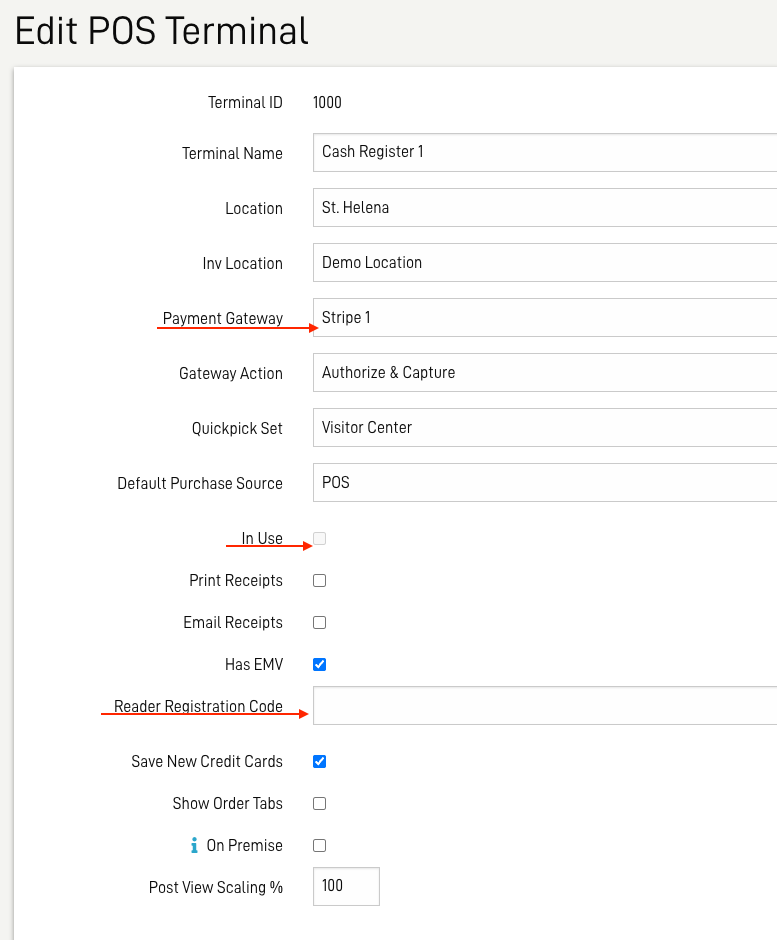
In the Admin Panel (ACP), select POS > Terminal Admin, and click on the terminal to Edit the POS Terminal.
- Ensure the terminal has been released: In Use unchecked.
- Confirm a Stripe Payment Gateway is assigned.
-
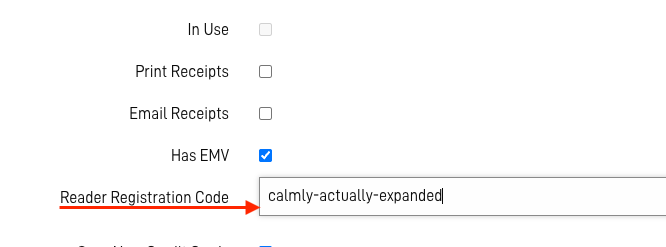
Check the Has EMV box. This will open a field to enter a Reader Registration Code.
-
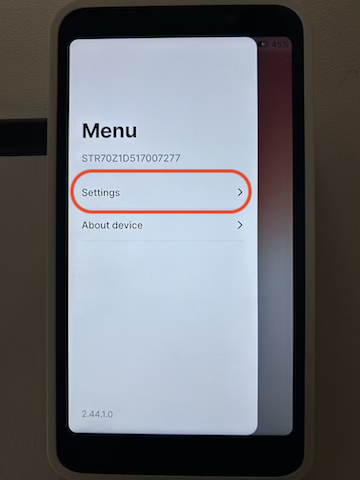
On the S700 device swipe right from the left edge of the reader screen to open the settings menu.
-
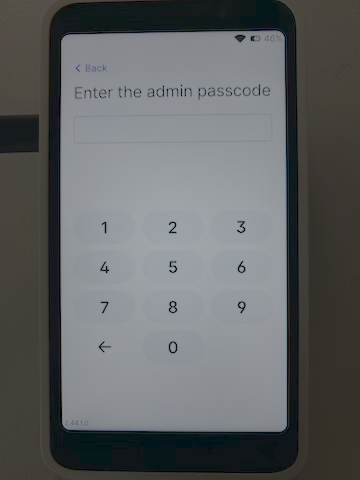
Enter the Admin Passcode 07139 to access the Admin Options.
-
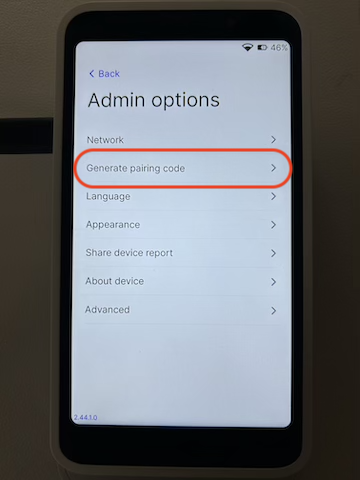
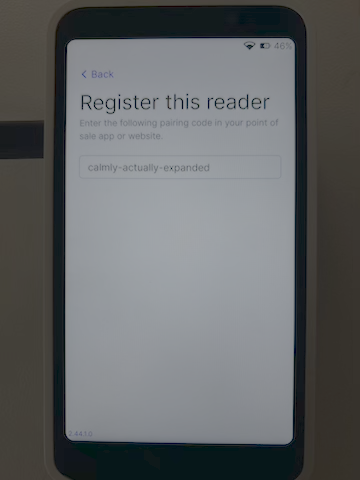
Select Generate paring code
-
Enter the code exactly as presented into the field in the POS terminal detail; all lower-case. Click save.
-
Register the terminal: POS > Manage, select the location and the terminal, click Register Terminal. You will get a confirmation message.
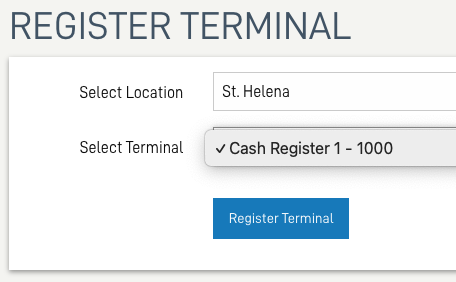

- Open the POS it is ready for use. (you will need to close and open "the drawer".)
See these related articles:
Contact Support if you need any assistance.