Stripe Manual Credit Card Entry
Manual Credit Card Entry on a Stripe S700 Device with a Registered Terminal.
-
There may be occasion to manually enter a credit card number when using a Stripe S700 on a Register Terminal where the default on the device is to tap or insert the card.
(See this article for more on Registered Terminals.)
- Manual card entry can only be performed on an S700 or S710 devise. M2 devices do not support manual card entry.
- Security Note: Manual credit card entry is considered a higher risk method of accepting payment and can expose the winery to greater fraud and chargeback liability. Whenever possible, more secure payment methods should be used.
In order to not disrupt current POS workflows, and enable manual card entry, follow these simple steps:
- In your web browser, open an Incognito or Private window.
- Log into eCELLAR, search for the customer and open the customer card > Credit Card tab > click Add New Card.
-
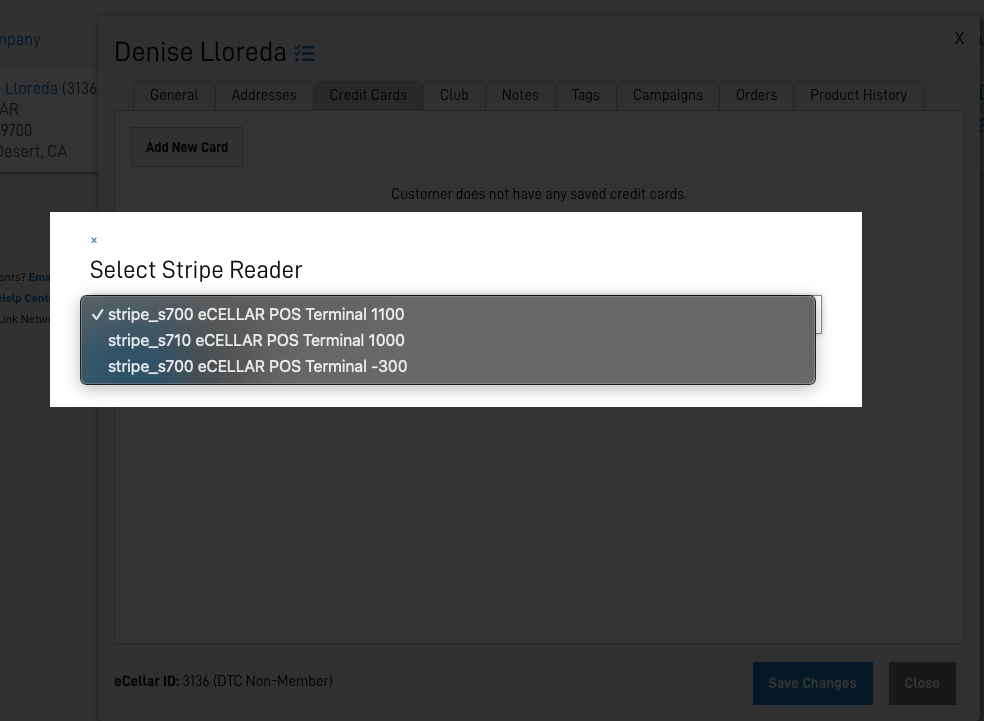
You will be asked to select a Stripe reader; select the POS Terminal for that you are currently using from the drop down menu.
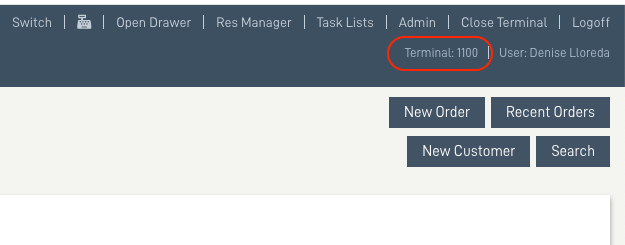
Note - you will need to know the ID number from the top right corner of the registered terminal you are using (in the other browser window).
-
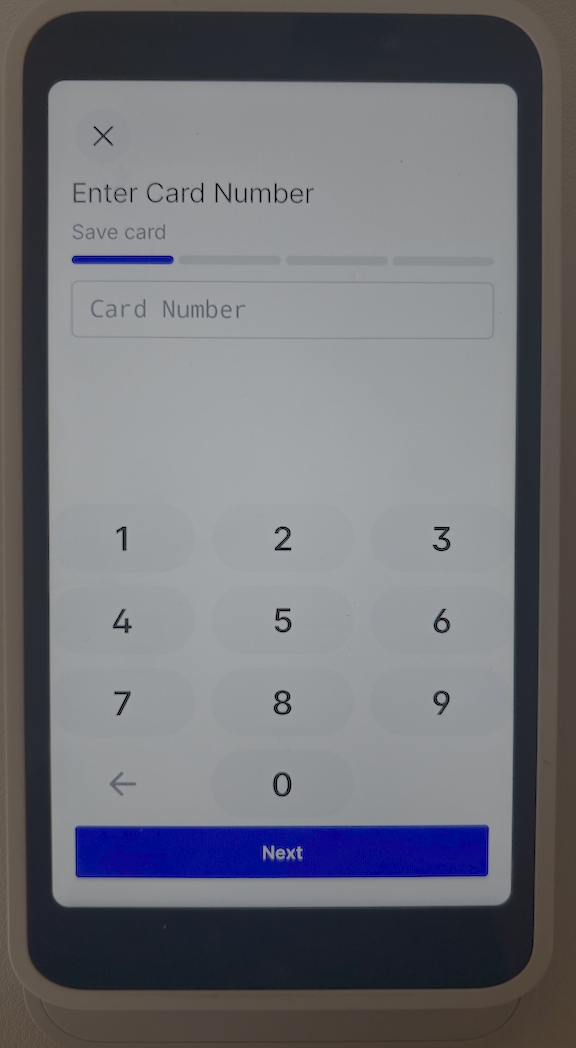
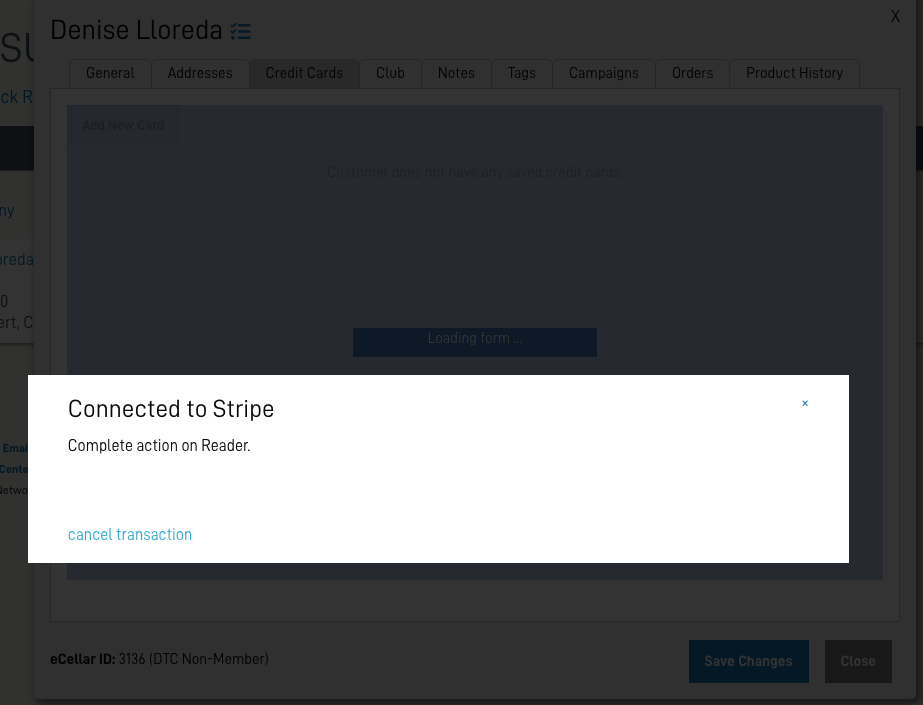
The key pad will appear on the S700 device and you will be able to enter the card number.
The card will be tokenized and ready for use in the POS, Web, and for any future orders.