Tipping with Stripe
All of the eCELLAR tipping methods are available for use with Stripe and behave the same as with OpenEdge:
- Use Touchscreen
- Use Printer Pre-payment
-
Use Printer Post Payment
See this article for details about setting up POS terminals for tipping.
The alternative option included with Stripe on an S700 or S710 is tipping on the device screen.
Tip Setup and Use with a StripeS700/S710 Device
NOTE: It is not a function on a non-registered Virtual POS terminal.
Set Up
Terminal Setting: Use Stripe S700/S710 Device
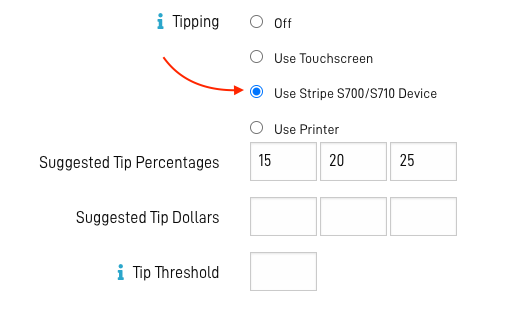
Use
Workflow:
- Process an order as usual in the POS.
- Click Place Order and the screen on the S700/S710 will display the tipping options.
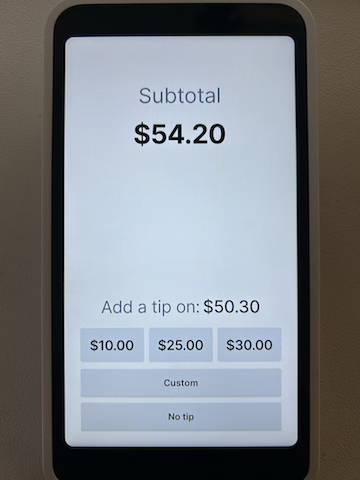
- Invite the customer to complete the transaction.
-
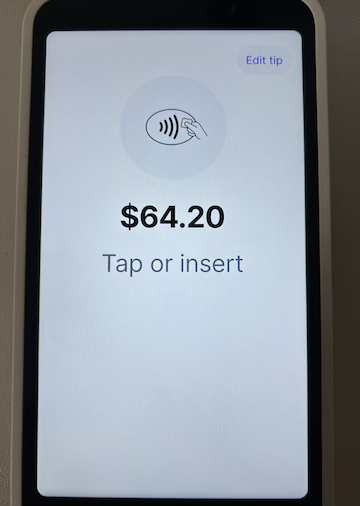
Upon entering a tip the screen will display the option or tap or insert a credit card, or edit the tip.
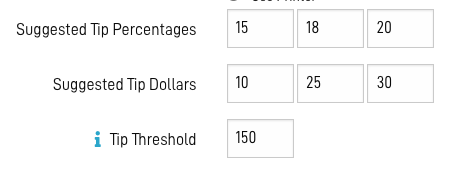
Tip Suggestions and Threshold Settings
- Tip suggestions may be presented in percentage or dollars, or both.
- Tip Threshold gives you flexibility to display different tip suggestions for small and large purchases.
- For example, you may want to display percentage tips for smaller orders, but dollar amount tips for larger purchases so customers don't feel expected to leave a very large percentage based tip.
- When both Suggested Tip Percentages and Suggested Tip Dollars are entered, the threshold is compared to the tippable (subtotal of the order) amount of the order to determine which suggestions are displayed.
Example:
The percentages, 15%, 18%, and 20% will be presented if the subtotal of the order is less than $150.00.
The dollar amounts, $10.00, $25.00, and $30.00 will be presented if the subtotal of the order is $150.00 or more.
Payment Gateway Dashboard and tips via Use Printer-Post Payment
This action requires access to the Payment Gateway: The Payment Gateway Manager permission provides high-level access to banking related matters and should only be granted to one or two management level users.
Adjust Tip Orders and the Payment Gateway
When an order is left without a tip adjustment - Adjust Tip has not been performed:
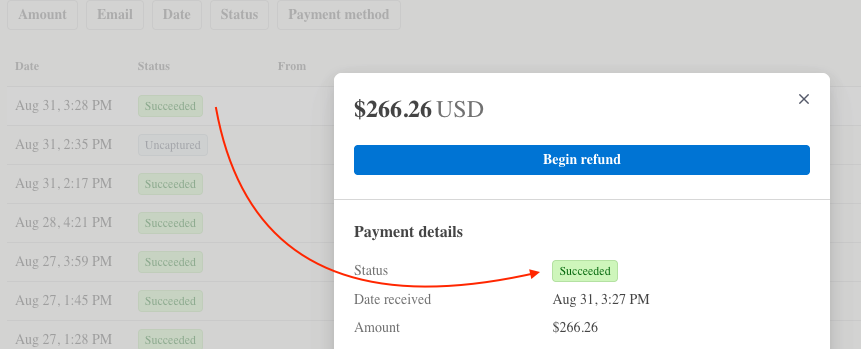
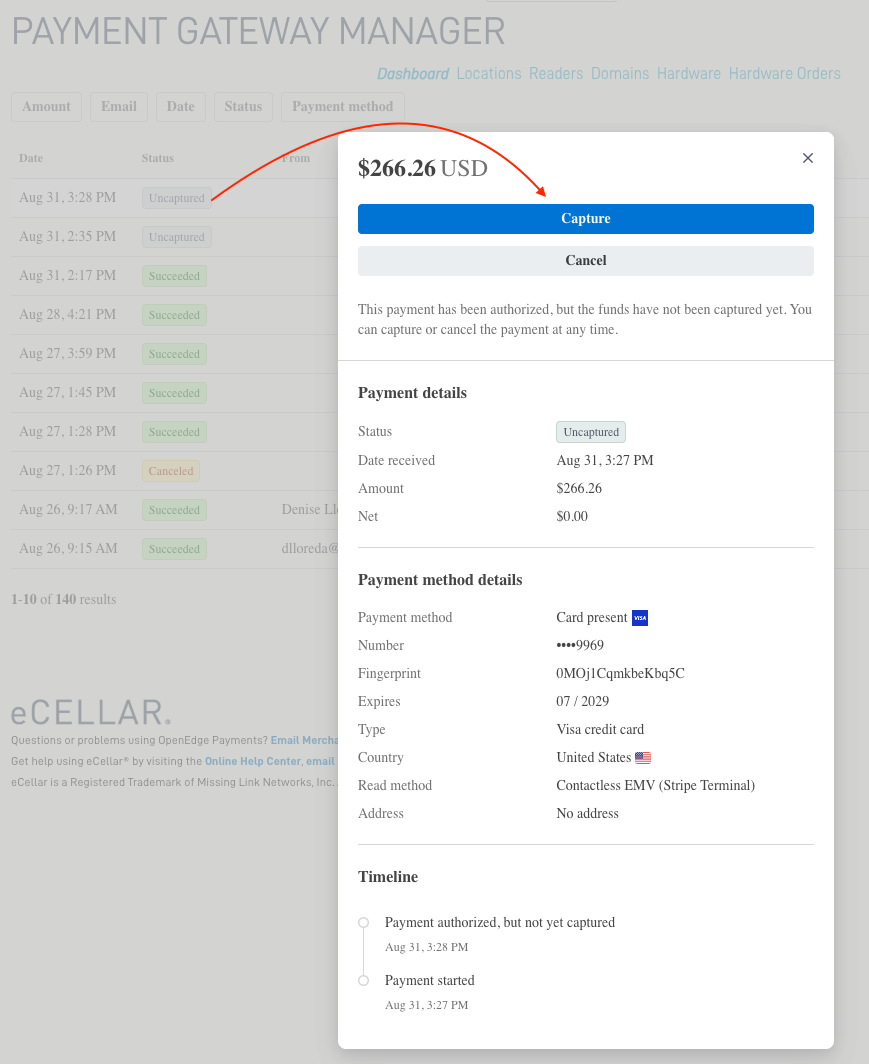
- In the Stripe Payment Gateway dashboard it will have the status of Uncaptured for 24 hours from the time stamp of the initial transaction.
- In eCELLAR the tip can be adjusted until 11:59pm, or the POS terminal is closed.


NOTE: Even though the payment status is Uncaptured in the Payment Gateway dashboard, the Payment Status in the eCELLAR order detail is Paid.

IMPORTANT: The UNCAPTURED Stripe payment status means the transaction was approved, but the funds were not transferred.
UPDATE the order: The order can be updated to the status Succeeded if desired.
-
Click on the status button to open a window, click Capture.
-
This will open another window, click Capture to receive confirmation.